
Here is How to get Block Editor in WooCommerce Product Pages
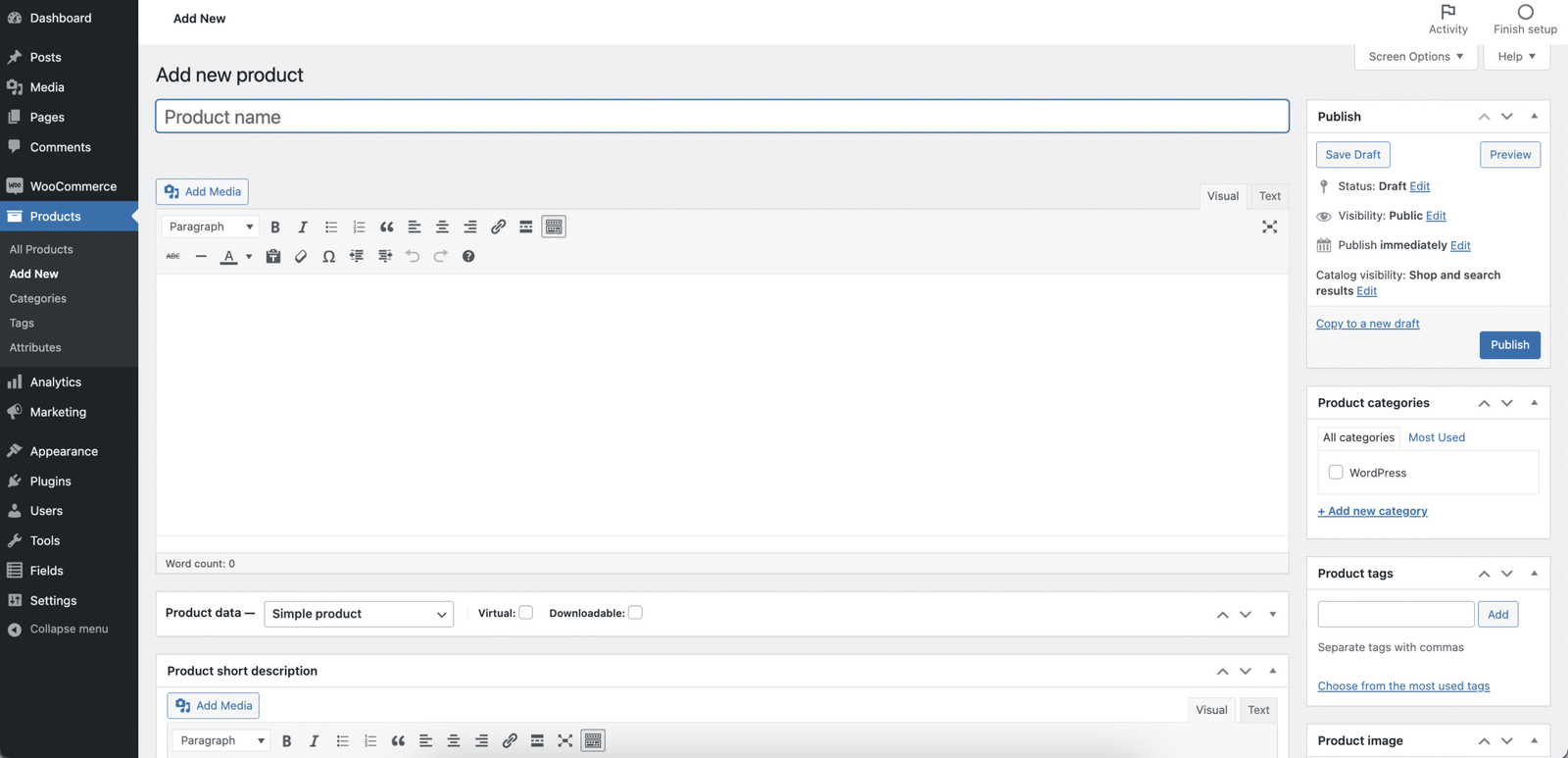
When you first install WooCommerce on your WordPress site, you’ll notice that the standard Classic Editor is used for creating and editing your product pages.
While the Classic Editor works, it can feel old-fashioned and limiting when it comes to design. Many people prefer the flexibility and modern design options of the WordPress Block Editor (Gutenberg).
Steps to get the Block Editor in WooCommerce product pages.
Step 1: Install the Code Snippets Plugin
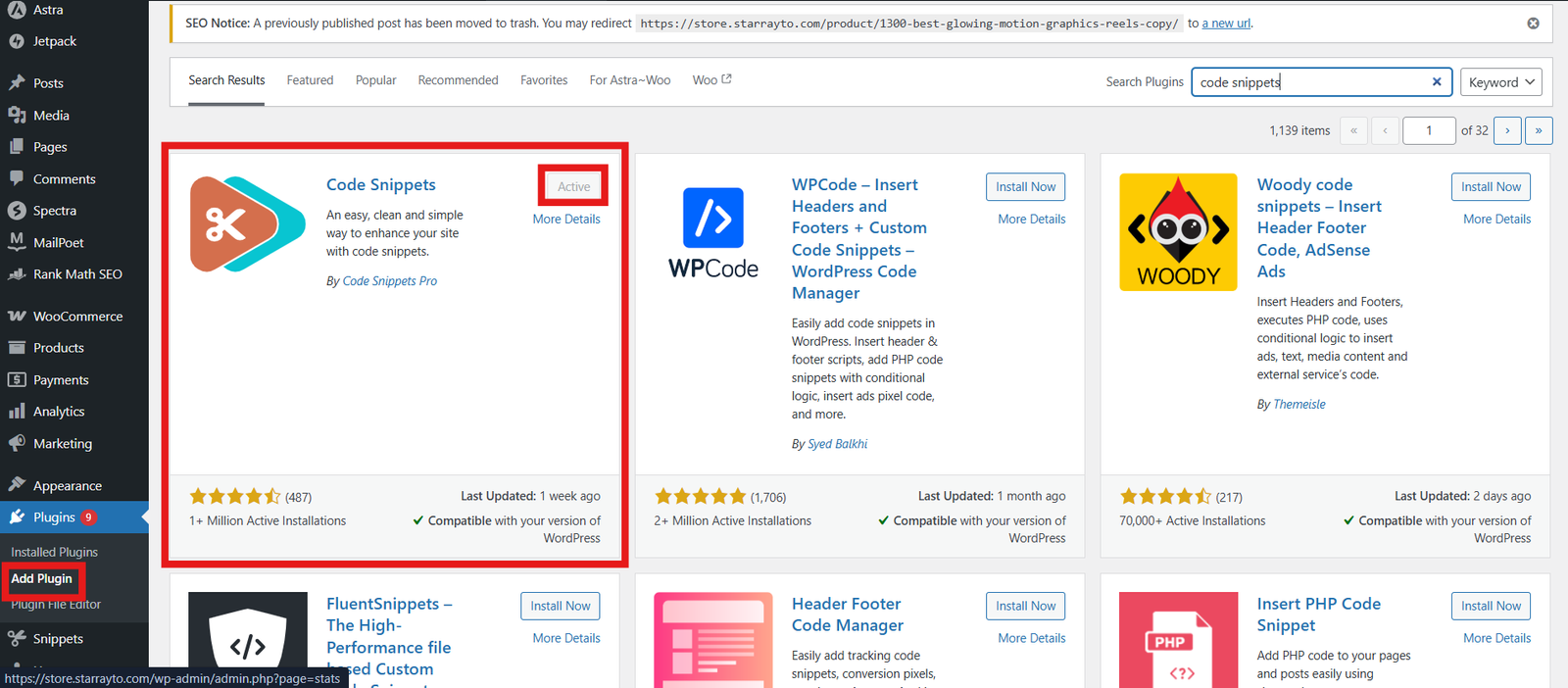
To make this change, we’ll need to add a small piece of code to your site. The easiest and safest way to do this is by using a free plugin called Code Snippets.
- Go to Plugins > Add New in your WordPress dashboard.
- Search for “Code Snippets”.
- Install and Activate the plugin.
This plugin allows you to safely run custom code without editing your theme files directly.
Step 2: Add and Activate the Code Snippet
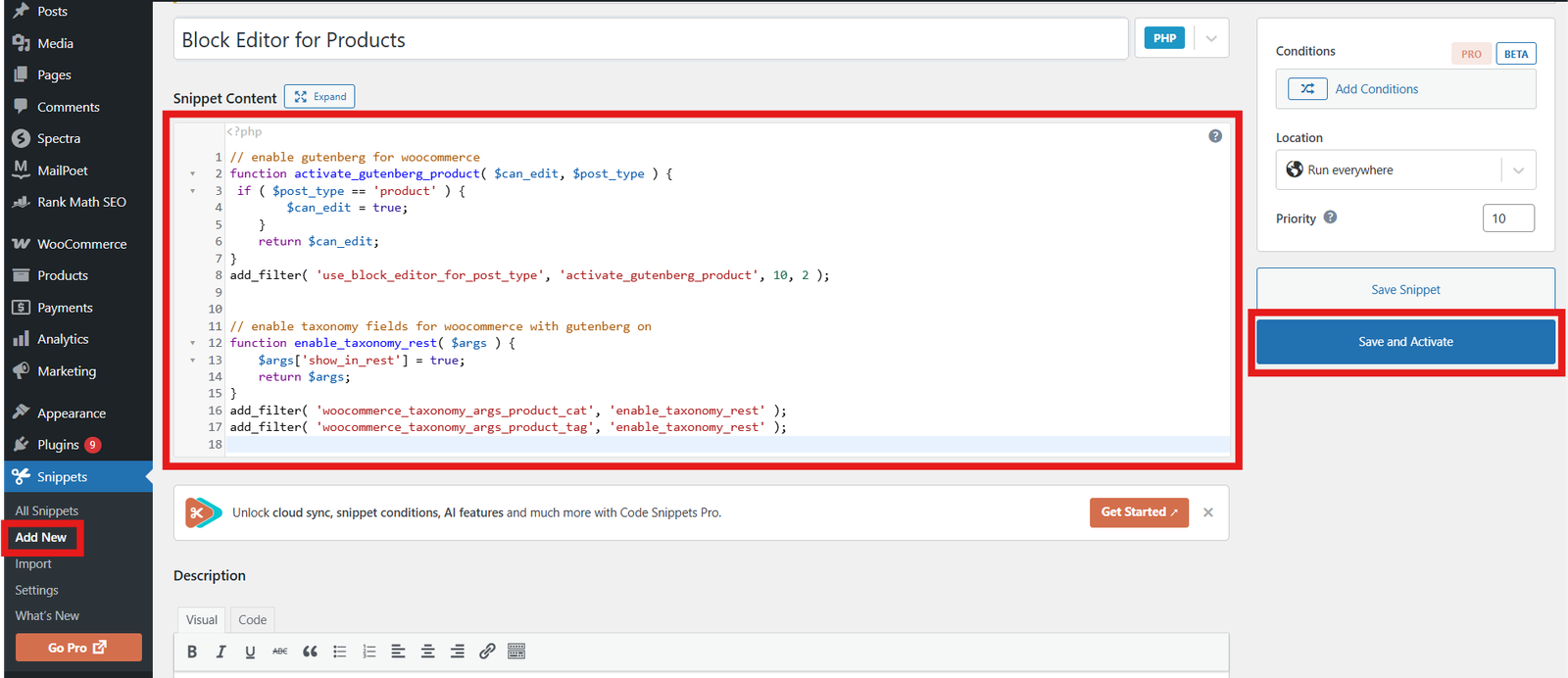
Once the plugin is active, you can input the special code that tells WooCommerce to use the Block Editor.
- Look for the new Snippets tab in your WordPress dashboard sidebar.
- Click on Add New.
- In the new page that opens, give your snippet a title, like Block Editor for Products.
- Copy the code below and paste it into the large code field:
- After pasting the code, scroll down and click Save Changes and Activate.
// enable gutenberg for woocommerce
function activate_gutenberg_product( $can_edit, $post_type ) {
 if ( $post_type == 'product' ) {
        $can_edit = true;
    }
    return $can_edit;
}
add_filter( 'use_block_editor_for_post_type', 'activate_gutenberg_product', 10, 2 );


// enable taxonomy fields for woocommerce with gutenberg on
function enable_taxonomy_rest( $args ) {
    $args['show_in_rest'] = true;
    return $args;
}
add_filter( 'woocommerce_taxonomy_args_product_cat', 'enable_taxonomy_rest' );
add_filter( 'woocommerce_taxonomy_args_product_tag', 'enable_taxonomy_rest' );
Step 3: Start Using the Block Editor!
That’s it! 🎉
Now, when you go to your WooCommerce > Products page and click to edit or create a new product, you will see the familiar and powerful Block Editor in WooCommerce product pages interface. You can now design beautiful, flexible product descriptions using all the WordPress blocks you love!
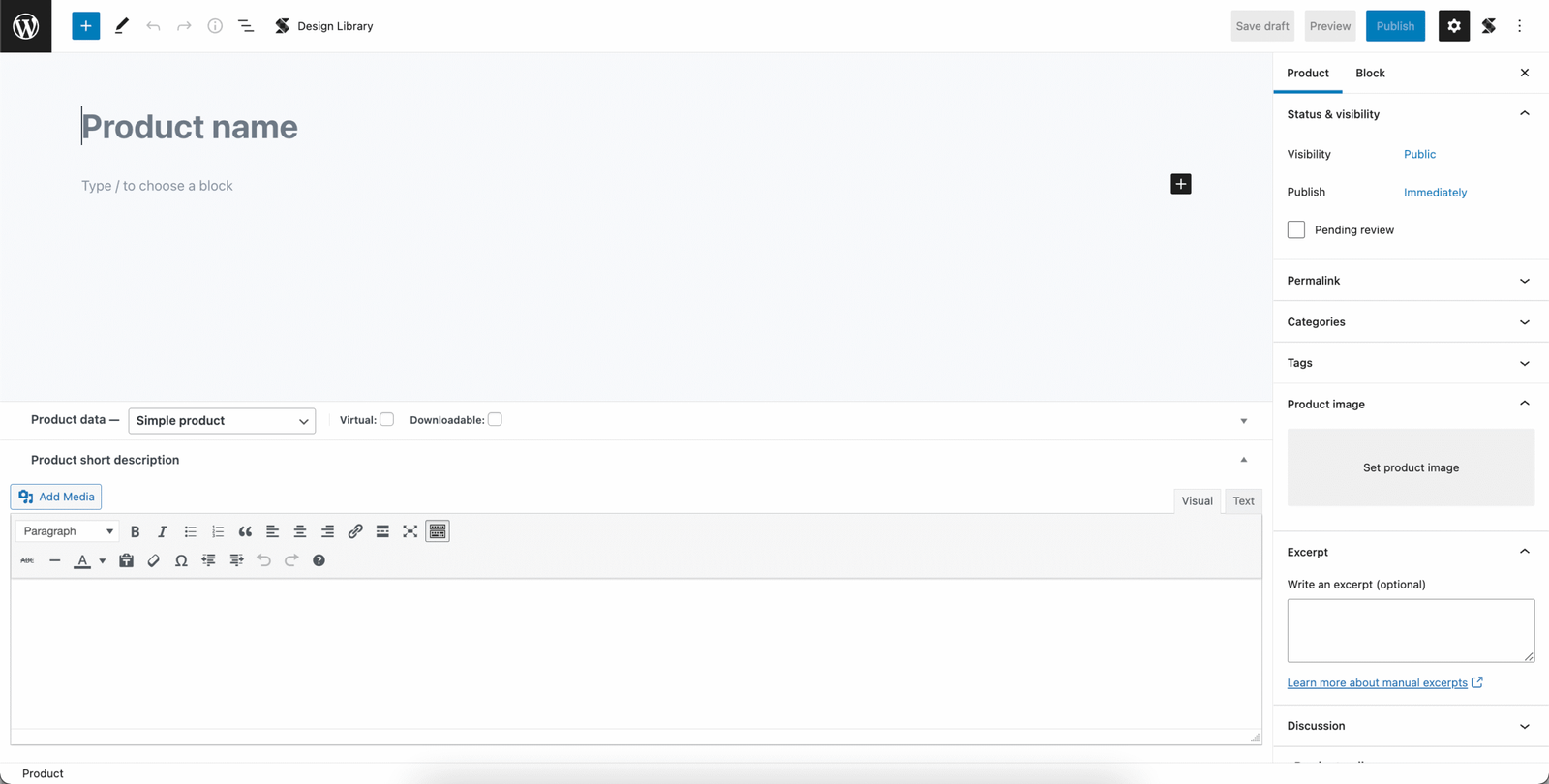
Enabling the Block Editor is a huge first step toward building modern, high-converting product pages. However, getting the design and functionality just right often requires expert help.
If you need assistance with custom Block Editor layouts, advanced WooCommerce features, or migrating your entire store to a better design, we’re here to help.
Don’t waste time struggling with code or design. Contact Us for Custom WooCommerce Development and Design today!
